Your files stay private
Both DOCX documents are read and compared in your browser. We do not receive or store their contents.
Choose the original and revised DOCX documents. Added, removed, and rewritten text is clearly marked, and your files stay in your browser.
Supports .docx
MAX 50MBSupports .docx
MAX 50MBBoth DOCX documents are read and compared in your browser. We do not receive or store their contents.
Compare wording in paragraphs, lists, and tables. Fonts, page layout, images, and comments are not included.
Keep both versions side by side, or read every change in one continuous document.
Unified view puts every edit into one document. Split view keeps the original and revised versions side by side, and you can switch at any time.
Added and removed text stays in context, making it easy to follow the revised wording from start to finish.
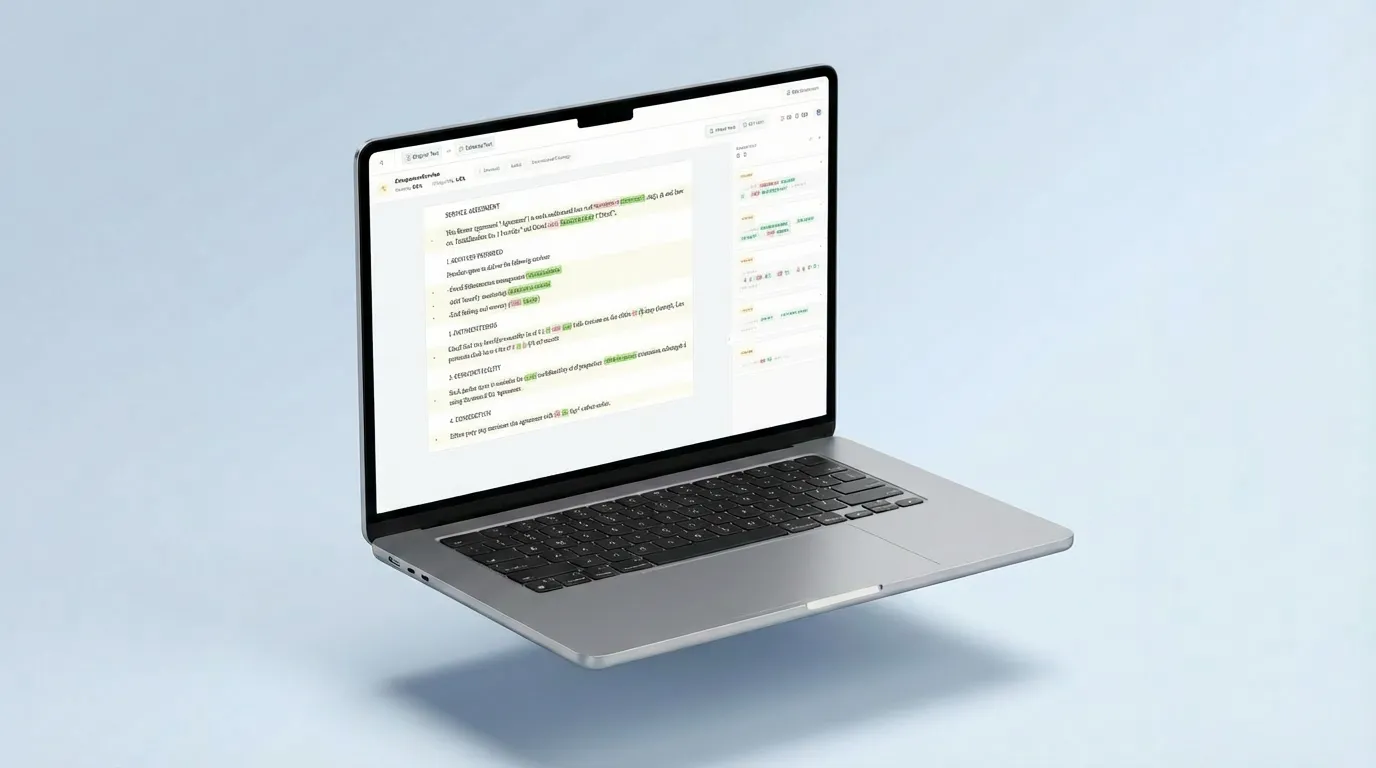
Put the earlier DOCX on the left and the revised version on the right. Added, removed, and rewritten text is marked so you do not have to reread every paragraph.
Select the DOCX from before the edits on the left.
Select the newer DOCX on the right, then click Compare Documents.
Use split or unified view to move through added, removed, and rewritten text.
Compare two Word documents when a contract, report, paper, or proposal has gone through another round of edits.
Find changes to clauses, definitions, dates, amounts, and policy wording.
Find edits between a submitted draft and the version returned by a client or colleague.
Check wording changes between versions of a paper, thesis, or assignment.
See what changed after a document moved between writers, reviewers, or departments.
The two DOCX documents are read and compared on your device. We do not receive or store their contents.
Compare2Word checks the wording inside two DOCX documents. Fonts, page layout, images, and Word revision history are not part of the result.
See text added, removed, or rewritten in paragraphs.
Compare the wording and order of list items.
Compare readable values and wording extracted from table cells.
Jump to the next difference instead of searching through the whole document.
Fonts, colors, spacing, page breaks, and positioning are not compared.
Comments, authors, timestamps, and Word Track Changes history are not shown.
Pictures, charts, shapes, and other visual changes are not compared.
The tool shows where the documents differ; it does not decide which wording you should keep.
New wording and removed text reveal the overall size and direction of the revision.
A one-word change can alter the meaning of a full sentence, so review each highlight in context.
For dates, amounts, clauses, and table values, use the highlight to find the change and confirm it in the original document.
Try a real example
Not ready to use your own files? Download the two sample DOCX documents below. The revised version changes a fee and notice period, removes one sentence, adds a deliverable, and updates a table value, so each kind of change is easy to spot.
Sample files
Two fictional one-page agreements with a small set of clear text changes.
Sample updated
Changes to look for when you compare the two sample documents.
| Location | Original document | Revised document |
|---|---|---|
| Clause 2 — Fees | $12,500 monthly fee | $13,200 monthly fee |
| Clause 3 — Notice | 30 days' written notice | 60 days' written notice |
| Clause 4 — Support | Custom-report sentence included | Sentence removed; training item added |
| Service schedule | Priority response: 2 business days | Priority response: 1 business day |
Use the sample pair to see how Compare2Word marks added, removed, and rewritten text in paragraphs, lists, and tables.
Save the original and revised agreements below. They are short, fictional DOCX documents made for this example.
Put the original on the left and the revised copy on the right, then select Compare Documents.
Use split or unified view, then compare the result with the four changes listed in the table above.
Learn which Word comparison method to use
See when a text comparison is enough and when Word Track Changes or a visual check is more useful.
Helpful guides
Learn how to compare Word versions carefully, choose the right method for important edits, and prepare other file types for a clearer result.
Word comparison
Use a repeatable review process to find wording changes without confusing text differences with layout, comments, or tracked-change history.
Read guideWord comparison
A text diff is excellent for locating wording changes, but authorship, revision history, formatting, and page appearance require different evidence.
Read guideSpreadsheet comparison
Use this workflow to control row order, inserted records, duplicate keys, formulas, encoding, and delimiters before comparing two tabular files.
Read guideWatch a short example of two DOCX files being compared and reviewed side by side.